Help center
Questions answered
Plans, installation, coverage, and support—everything you need to know before you sign up or when something goes wrong.
Help center
Plans, installation, coverage, and support—everything you need to know before you sign up or when something goes wrong.
No results found
Try a different search term, or to browse all questions.
Service & plans
Residential plans range up to 150 Mbps download with unlimited data. Available speeds and monthly rates depend on your address—we do not publish a single price list for every location.
Check your address on our services page to see plans and pricing where you live, including contract options.
No. Speeds above 100 Mbps (Full 150, Extreme 200, and Extreme Plus 300) are not guaranteed.
Wireless performance depends on your location. After a site survey and professional installation, if your connection can support a higher-speed plan, we will provide it. Advertised speeds on those plans are best-effort targets, not a promise.
No. Residential plans include truly unlimited data with no throttling and no overage charges.
Where available, you can choose a 24-month, 12-month, or no-contract term. Monthly rates may differ by contract length—compare options during your address check before you sign up.
Yes. We offer commercial packages with custom speeds and SLAs. Contact sales for a quote tailored to your business.
Getting connected
One-time fees such as activation or installation are shown when you check your address and select a plan—they are separate from your monthly rate. You will see the full breakdown before you submit a signup request.
On-site installation typically takes 2–3 hours. We schedule a time that works for you; our technician handles rooftop equipment, cabling, and getting your connection online.
We provide the outdoor radio/antenna, indoor router, and cabling as part of your service. You only need standard power outlets inside your home.
Most installations are scheduled within 7–14 days of signup, depending on your location and our current workload. We work to get you connected as soon as possible.
Where we serve
Use the address checker on our services page or call (850) 904-2086. Enter your street address, confirm your rooftop on the map, and we will show plans available at your location.
We are expanding regularly. If the checker shows no service, contact us to register your interest—we will reach out when coverage reaches your address.
How it works
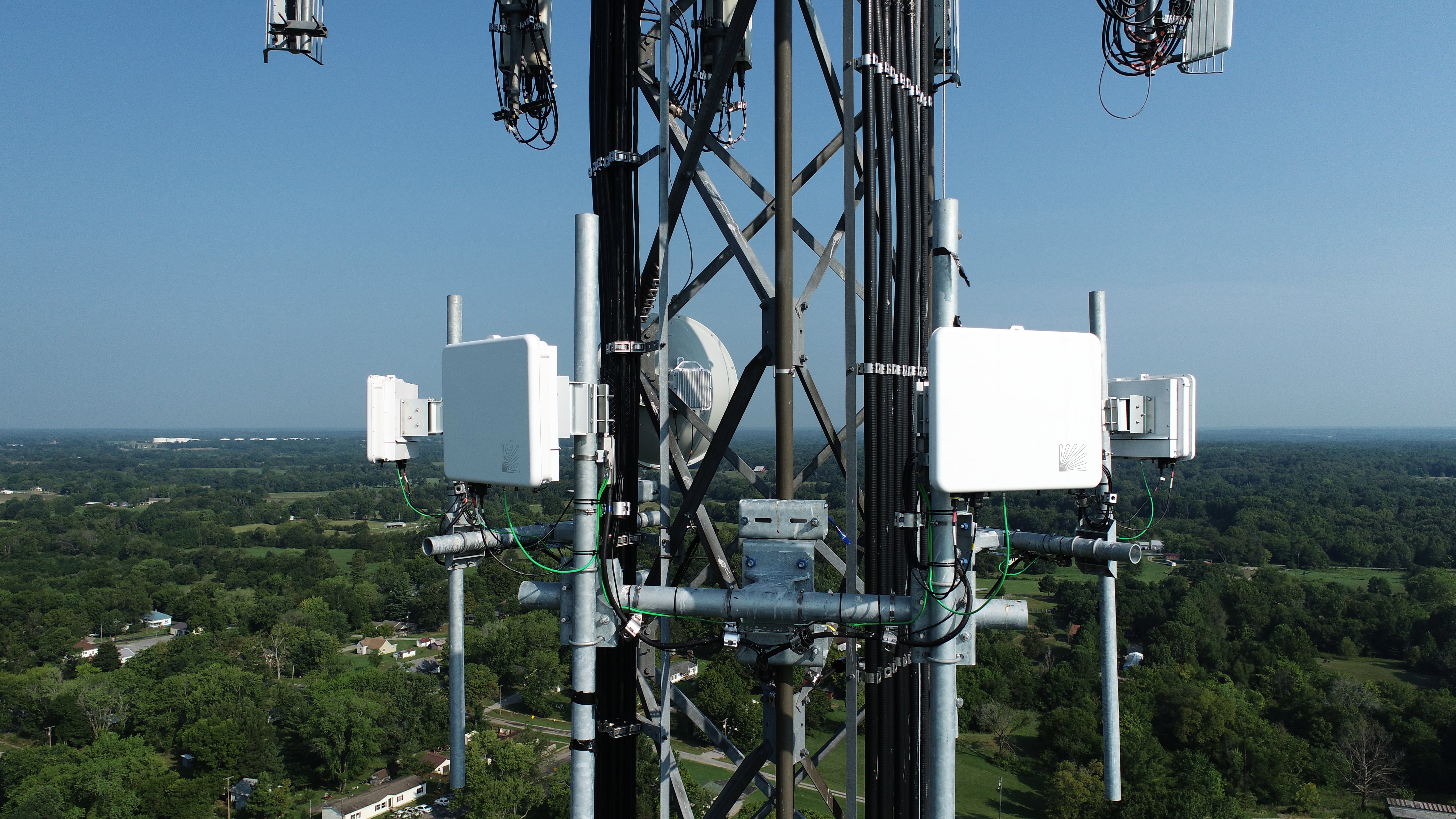
Wireless internet can be very reliable when the signal path is clean, the equipment is properly aligned, and the network is monitored. Unlike satellite, fixed wireless uses nearby towers instead of space-based links, so latency is much lower and performance is usually much more consistent.
That said, wireless service depends on signal quality. Trees, new obstructions, damaged cabling, power issues, or equipment movement can affect performance.
Normal rain usually does not cause a problem. Severe storms, heavy wind, lightning, power outages, or tower-side issues can affect service.
The most common weather-related problems are not rain itself, but things like power loss, equipment being moved by wind, water getting into damaged cable, or trees shifting into the signal path.
In most cases, yes. Fixed wireless works best when your antenna has a clear or near-clear path to the tower.
Trees, buildings, hills, and other obstructions can weaken the signal or cause instability. During installation, a technician checks signal quality before completing the service.
Yes. Trees can block or weaken the wireless signal, especially when they are wet, dense, or directly in the signal path.
A service may work fine at first and degrade later if trees grow into the path over time. That is one of the main reasons wireless service can become slower or less stable months or years after installation.
The biggest factors are distance from the tower, line of sight, tree coverage, antenna alignment, interference, cable condition, and equipment health.
A strong signal is not the only thing that matters. Signal quality, noise, and stability are just as important. Big signal with bad quality is like yelling in a crowded room. Technically loud, still useless.
No. Fixed wireless and satellite are very different.
Fixed wireless connects your home to a nearby tower on the ground. Satellite internet connects to satellites in orbit. Fixed wireless typically has lower latency, better real-time performance, and is usually better for gaming, video calls, VPNs, and remote work.
Latency is the amount of time it takes data to travel from your device to the internet and back.
Low latency is important for gaming, video calls, remote work, voice calls, and anything interactive. Speed matters, but latency is what makes a connection feel responsive.
Packet loss means some data does not successfully make it from one side of the connection to the other.
Even small amounts of packet loss can cause buffering, choppy video calls, lag, disconnects, or slow-loading pages. Packet loss is often more noticeable than a lower speed test result.
Speed tests can vary because of Wi-Fi conditions, device limitations, network usage, server selection, tower load, and normal internet congestion.
A single speed test is a snapshot, not a full diagnosis. For best results, test from a wired device directly connected to the router.
Your internet plan is the speed delivered to your location, but Wi-Fi performance depends on your router, device, distance, walls, interference, and whether you are using 2.4 GHz or 5 GHz.
A poor Wi-Fi signal can make a good internet connection look bad. The internet may be fine, while the Wi-Fi is the weak link.
2.4 GHz travels farther and passes through walls better, but it is usually slower and more crowded.
5 GHz is usually faster and cleaner, but it does not travel as far. If you are close to the router, 5 GHz is usually better. If you are farther away, 2.4 GHz may be more stable.
You may need mesh Wi-Fi if your home is large, has thick walls, multiple floors, or rooms where the signal is weak.
Mesh does not make the internet coming into the home faster, but it can improve Wi-Fi coverage inside the home. It fixes “bad Wi-Fi in the back bedroom,”
In order to ensure you have the best setup with a mesh, there are a few variables to consider. If you have a single-node system, it may be best to leave our router in router mode and use your mesh as a wired extension in AP/Bridge mode.
If your mesh system is a multi-node setup, we will need to place our MikroTik router in bridge mode and your mesh base node will need to be in router mode. With this setup, you will need to contact our technical support team to get your MikroTik configuration updated to support this topology.
Yes, in most cases. Your router needs to support standard Ethernet WAN service.
If you use your own router, you may be responsible for managing your Wi-Fi settings, firmware updates, passwords, parental controls, and internal network configuration.
Usually, yes. Most customer-owned firewalls work as long as they support Ethernet WAN and DHCP or the assigned IP configuration.
For advanced setups like static IPs, port forwarding, VPN tunnels, VLANs, or business networks, additional configuration may be needed.
Static IP addresses may be available depending on the plan and network configuration.
A static IP is useful for VPNs, cameras, remote access, business firewalls, servers, or systems that need a consistent public address.
Yes. Most VPN services work over fixed wireless internet.
If a VPN is slow, the issue may be the VPN provider, encryption overhead, the remote server, MTU settings, or Wi-Fi quality. Not every VPN problem is an internet problem, even though the VPN will absolutely try to frame it that way.
Yes. Most cameras work well, but performance depends on upload speed, Wi-Fi strength, camera quantity, video quality, and whether the cameras stream continuously to the cloud.
Too many cameras uploading at once can consume a lot of bandwidth, especially on lower-speed plans.
Yes, fixed wireless can work well for gaming when latency and packet loss are low.
Gaming usually does not need huge download speeds, but it does need a stable connection. A wired connection to the router is strongly recommended for consoles or gaming PCs.
Yes. Streaming works well when your plan has enough bandwidth and your Wi-Fi signal is strong.
The number of streams matters. One HD stream is easy. Multiple 4K streams, cameras, phones, tablets, and game downloads all at the same time can add up quickly.
It depends on how many people and devices are using the connection.
Basic browsing and email need very little speed. Streaming, gaming downloads, cloud backups, video calls, and multiple users require more. The more devices using the internet at the same time, the more bandwidth you need.
Every connected device shares the same internet connection. Phones, TVs, tablets, cameras, game consoles, computers, and smart home devices can all use bandwidth in the background.
Cloud backups, updates, streaming, and downloads are common causes of sudden slowdowns.
Upload speed is used when sending data out from your home.
Examples include video calls, cloud backups, security cameras, gaming communication, sending large files, posting videos, and remote work applications. Upload speed is especially important for work-from-home and camera systems.
Video calls send your audio and video out while also downloading everyone else’s audio and video.
If upload speed is limited or unstable, other people may see your video freeze, hear choppy audio, or experience delays from your side.
Unfortunately, we are not able to provide direct access to our managed CPE MikroTik routers.
These routers are part of our managed network equipment and require standardized configurations for security, monitoring, support, and service reliability. Allowing direct customer access could create security risks, configuration conflicts, or service issues that may affect your connection.
If you have a specific network-related need, please contact us and we will review the request. In most cases, changes to managed equipment are limited to what is necessary to maintain a secure, stable, and supportable connection.
For customers who need full control of their own internal network, we recommend using a personal router or mesh system.
Fix it yourself
First, check if your router has power. Then reboot your router by unplugging it for about 30 seconds and plugging it back in.
If your service uses a separate power adapter for the outdoor equipment, make sure that is powered on as well. Avoid resetting equipment with a pinhole reset button unless support tells you to, because that can erase configuration.
Rebooting turns the device off and back on. This is safe and often helps.
Resetting usually restores factory defaults. That can erase settings and break the connection. Reboot good. Factory reset bad unless instructed.
That usually means your device is connected to Wi-Fi, but the router is not successfully reaching the internet.
Possible causes include an outage, router issue, unplugged cable, powered-off outdoor equipment, failed power adapter, or a configuration problem.
If only one device is having trouble, the issue is usually with that device or its Wi-Fi connection.
Try forgetting and reconnecting to the Wi-Fi, rebooting the device, checking airplane mode, testing another browser or app, or moving closer to the router.
Ethernet avoids Wi-Fi interference, weak signal, wall blockage, and device roaming issues.
A wired test is the best way to tell whether the problem is the internet connection itself or just the Wi-Fi inside the home.
The best test is a wired speed test from a computer connected directly to the router.
If wired speeds are good but Wi-Fi is poor, the issue is likely inside the home. If wired speeds are also poor, then the issue may be with the service, router, cabling, or outdoor connection.
Yes. Your home equipment needs power, and tower equipment also needs power.
Our towers have battery backups, but runtime is limited. If your home loses power, your internet will not work unless your router and outdoor equipment are connected to a battery backup.
Yes. A UPS can keep your router and internet equipment powered during short outages.
For best results, connect both the router and the outdoor equipment power supply to the battery backup. If only the router is backed up but the outdoor radio is not, the Wi-Fi may stay on but the internet will still be down.
Do not factory reset the router or outdoor equipment unless support tells you to.
Also avoid moving the outdoor antenna, unplugging unknown cables, changing router WAN settings, or swapping equipment without confirming the setup. “I just changed one thing” is how many three-hour mysteries are born.
Account & help
Pay online through the customer portal, set up autopay, or pay by phone. We accept credit cards, debit cards, and ACH.
We show your monthly rate and any one-time fees before you complete signup. No surprise equipment rental charges—the price you confirm at address check is what we quote for your plan and contract.
24/7 support by phone, email, and the customer portal. Our team works in the Panhandle communities we serve, so you get local help when you need it.
Call (850) 904-2086 anytime. Most issues are resolved remotely; when a visit is needed, we dispatch a technician.
Please contact us before moving so we can help coordinate the proper equipment transfer, removal, or service relocation. The equipment installed at your residence is assigned to your account and should not be moved, removed, or left behind without notifying us.
If equipment is not returned, cannot be recovered, or is damaged after you move, additional equipment replacement or recovery charges may apply.
Please contact us and we can help update your Wi-Fi name or password. We will also make sure you have the correct login information before the change is completed.
For security reasons, we recommend keeping your Wi-Fi password private and only sharing it with trusted users.
Network status
Visit our live outage map for active service disruptions in our coverage area. The map refreshes automatically every 30 seconds. If you do not see your zone shaded but still have no connection, call support.
Yes—especially if the map shows no active zone at your location. Reporting helps our team investigate whether the issue is account-specific, equipment-related, or a wider event we are still mapping.
Our team is happy to walk you through plans, coverage, or billing—call or send a message.